Jakey here, to do a quick Pizap refresher!!

With the Once upon a Time Blog Hop coming up next Friday, I thought we would do a quick
and easy picture you could use at the beginning of the post!
(Click HERE to transport over and learn more about Blogville's Once Upon a Time Blog Hop!)

First, let's go to Pizap.com and click Start

Then, since we will be editing an existing picture, click Edit.

Now, select the photo you would like to use. Mama stores all our pictures on our computer, so we are clicking on computer!

Then we chose the photo we wanted to use!

Next, let's add a frame! Just click on the little "frame" at the top of the picture. Pizap has dozens of frames to choose from, so take some time to browse and choose one you really like!

Dory wanted a frame that went with her ocean themed Fairy Tale, so we went with this blue swirly frame!
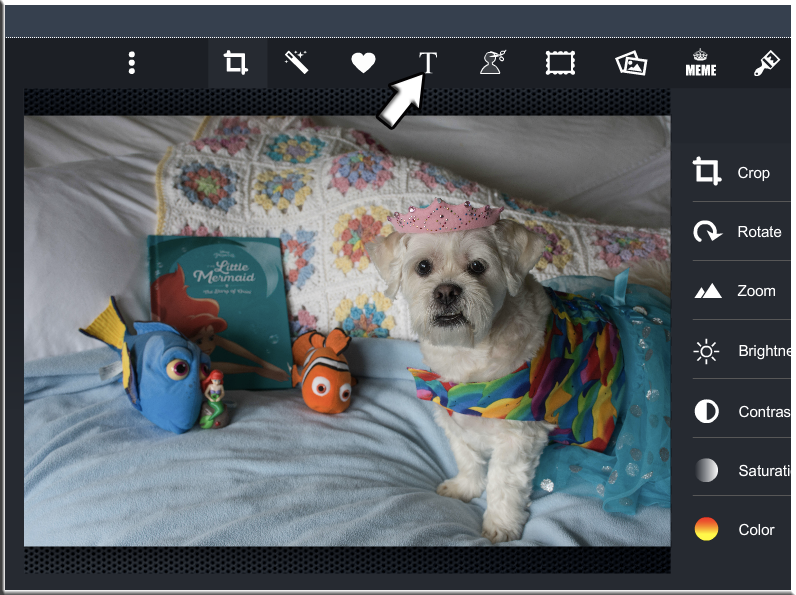
Now let's add some text!! Click on the "T"!

To choose the type of font (text type) you would like to use click on the little drop box arrow. Again, the have lots of different fonts, take time to choose the one you want! You can adjust the size of the font, by clicking the little arrow to the right of the side of size box.

Then, just type the text in the box!
Once you have things the way you want, just click OK!
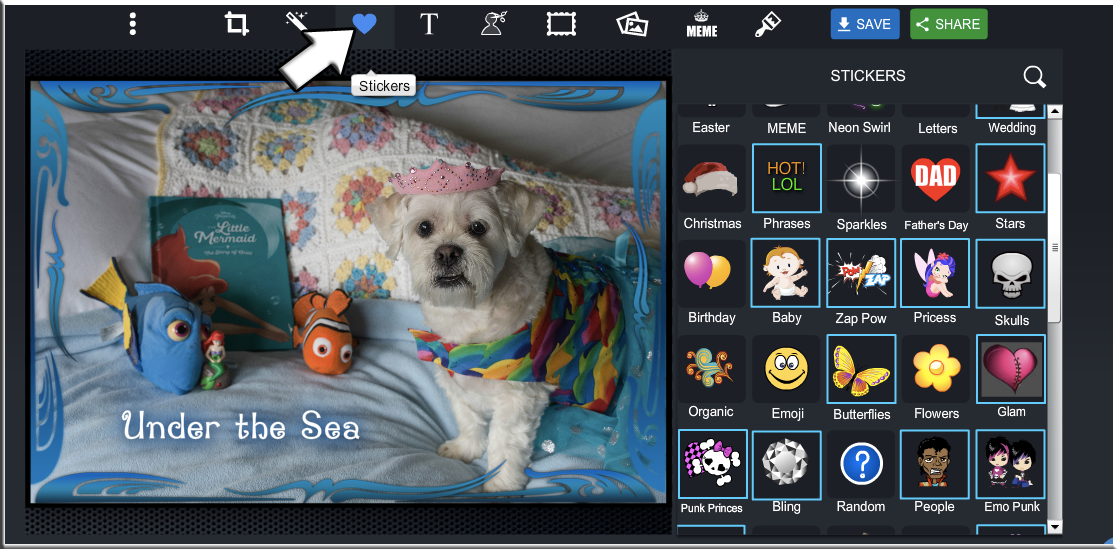
Now, let's add some finishing touch stickers!!
OMD...Pizap has TONS of stickers!!

We decided to stay with the underwater theme and added some fishies and star fishies!!

Now that we have things the way we want them, let's go ahead and save the finished product by clicking "Save" in the upper right hand corner.

Then click "Save"

If you are like my Mama, you may want to write down where it is being saved so you don't have to listen to your Mama saying HBO words to the computer later!
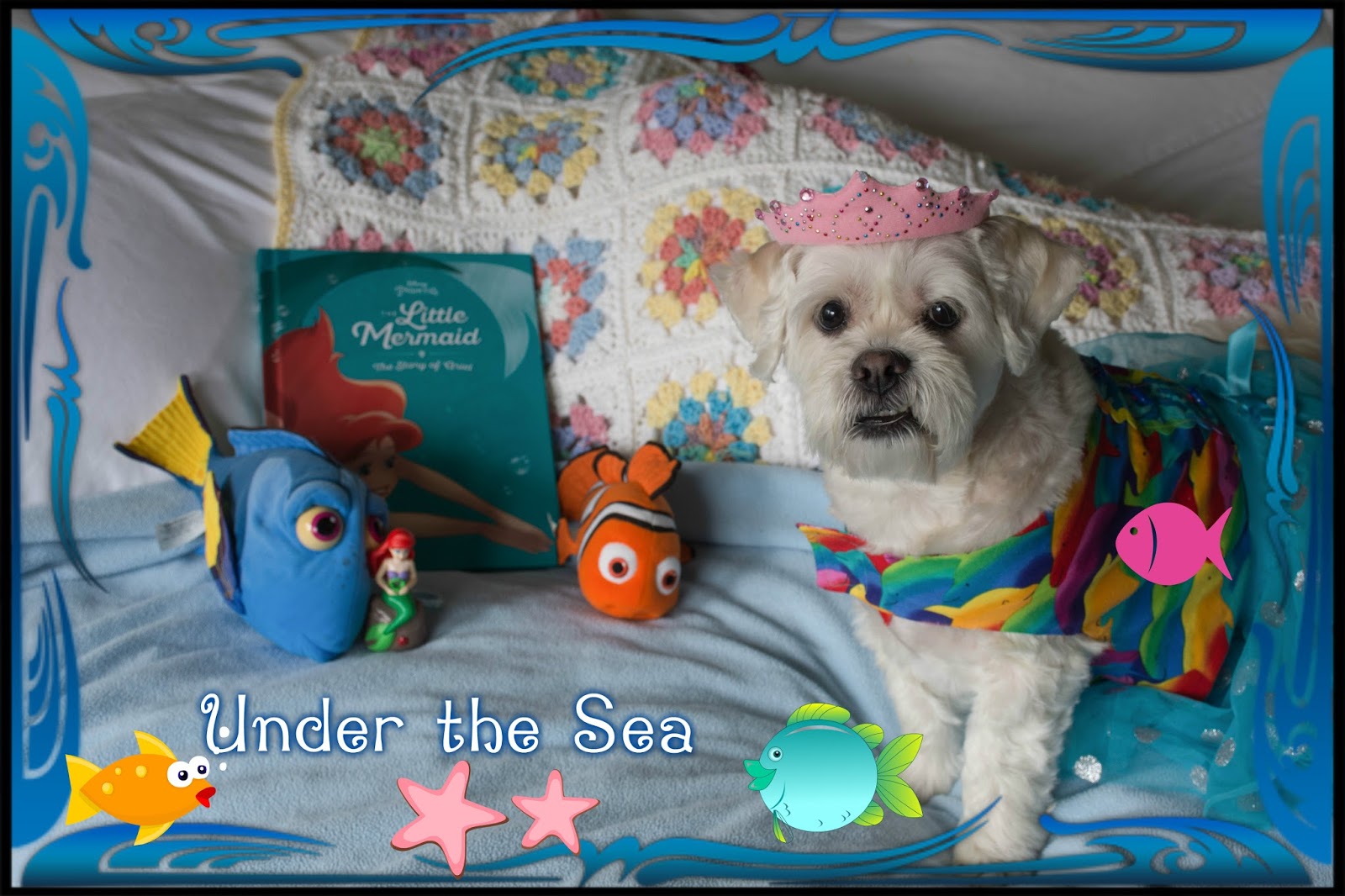
Then Ta Da!!! You have a picture for your Fairy Tale!!

Thanks for joining me today! To learn more about editing in Pizap and PicMonkey, head over and visit my Artist Tutorial Page by clicking HERE.
Now, I'm off to take a nap!